How to organize YouTube subscriptions by topic
Quick answer
To organize YouTube subscriptions, group channels by the subjects you follow. Browser bookmark folders give you a free list to visit manually. A subscription manager can combine each group’s new uploads into a topic feed. Use YouTube playlists for a different job: collecting individual videos you already found.
Start with one subject you actually want to keep up with. You can try a simple folder first, then use Feedvault if you want uploads from those channels together in a separate browser workspace.
Put channel links into bookmark folders
This works when you want a few places to check and do not need a combined upload feed. Here is the desktop Chrome route; other browsers have similar bookmark folders.
- Open Chrome’s menu, choose Bookmarks and lists, then Bookmark Manager.
- In the manager’s menu, choose Add new folder. Name it for a subject, such as “Web development”.
- Open a channel you want to follow and bookmark its page with the star in the address bar. Move the bookmark into your topic folder.
- Repeat for a few relevant channels. When you return to the subject, open that folder and check each channel’s recent uploads.
Steps follow Chrome’s bookmark instructions. The folders live in your browser; they do not change YouTube’s subscription list or collect new uploads for you.
Give each group a reason to exist
“Web development” might hold channels you consult while building a site. “Cooking” might hold recipes you try at the weekend. A channel belongs in a group because you expect to use it there. Start with those two groups before reorganizing your entire subscription list.
Organize YouTube subscriptions without an extension
Feedvault runs as a website on desktop and mobile. Create a Feed for a topic, add public channels by URL or handle, and browse their eligible uploads newest first. There is no bulk subscription import: you choose which channels to add.
-
Step 1
Choose one topic
Choose New feed, enter a useful name such as “Web development”, then choose Create feed. Keep “Cooking” in a separate Feed so the two subjects have different places to browse.
-
Step 2
Add the sources you need
Open the Feed and choose Add channels. Paste public channel URLs or handles, one per line, then choose Add all. Add up to three at a time; begin with sources you already know.
-
Step 3
Browse one subject
Open the Feed to see eligible uploads from its channels in publish-date order. Return to this same Feed when you next want to catch up on the topic.
The example below uses an “AI Tools” Feed with Systems Made Better, JOEY and Tina Huang. Keeping this small set together gives AI-related uploads their own place to browse. Your Feed can use a different subject and channels.
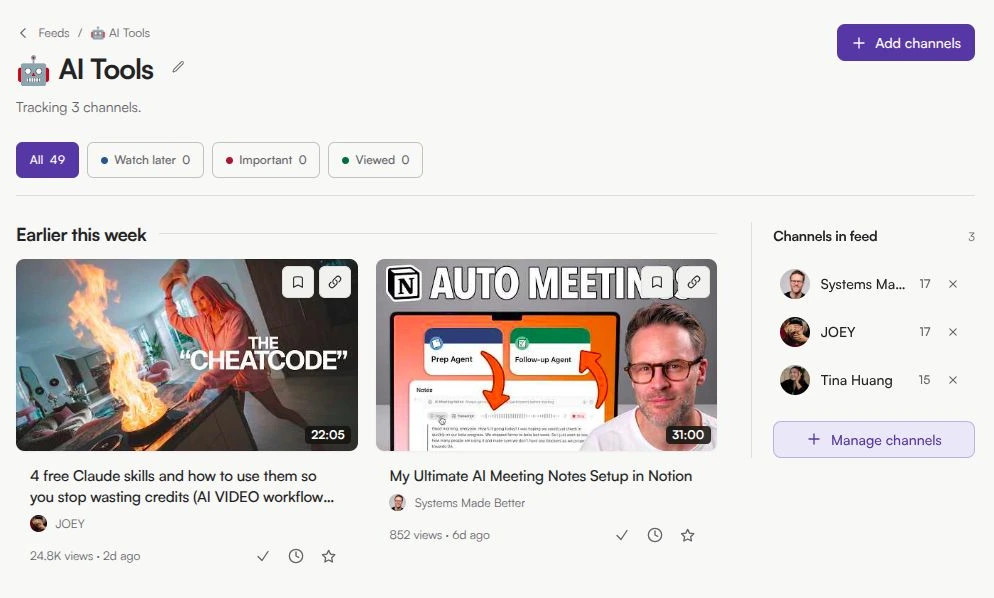
Feedvault filters likely Shorts from its own Feeds, but classification is not perfect. Opening a video takes you to YouTube for playback. Your existing YouTube subscriptions stay as they are.
Turn a useful upload into a reference
A Feed changes as channels publish. When one video answers a question you will need again, save it to a Study for that project and add your own note. The Study keeps the selected reference separate from the ongoing stream of uploads.
Example: a reference for your next website
While browsing your web development Feed, you find a useful explanation of page layout. Save it to a Study called “Website project”. A useful note could be:
“Keep this for the navigation layout. Next step: try the narrow-screen version before adding the rest of the pages.”
On your next work session, open the Study to return to the video and the reason you kept it. See the save-and-note walkthrough for the capture steps. For a school and leisure split, follow the study and entertainment example.
Use the simplest setup that does the job
| What you want | A suitable starting point |
|---|---|
| Visit a few channels by topic | Free browser bookmark folders; check each channel manually. |
| Keep individual videos together | YouTube playlists; add the videos you choose. |
| Group channels inside YouTube | PocketTube; compare its extension and mobile options. |
| Read channel updates alongside other sources | An RSS reader; grouping and video features depend on the reader. |
| Use separate topic Feeds and keep personal video notes | Feedvault in your browser, with manual channel setup. |
For a wider tool comparison, see the YouTube subscription managers guide. If you mainly want another place to catch up, compare subscription feed alternatives.
Try one Feed before moving more channels
Start a 7-day trial with no card required. Build one topic Feed, save one useful video, and return to its note. Plus is $7/month or $59/year; the trial does not charge automatically.
Start your free trial See plans and limitsQuestions about organizing channels
How do I organize YouTube subscriptions into folders?
Use browser bookmark folders for a free, manual list of channel links. For a combined feed of uploads from each group, use a subscription manager such as PocketTube or a separate web app such as Feedvault. YouTube playlists collect individual videos rather than channels.
Can I organize YouTube subscriptions without an extension?
Yes. Bookmark channel pages into topic folders in your browser, or use Feedvault in a desktop or mobile browser. Bookmarks require you to check each channel yourself. Feedvault collects eligible uploads from the channels you add into topic Feeds.
What is the difference between a Feed and a Study?
A Feed groups channels and shows their eligible uploads in publish-date order. A Study holds individual videos you have chosen to keep, together with your own notes. Use a Feed to follow a subject and a Study to keep references for a project.
Can I import all my YouTube subscriptions into Feedvault?
Bulk subscription import is not currently available. Add public channels manually by pasting channel URLs or handles into Add channels. Start with the channels relevant to one topic; your existing YouTube subscriptions are unchanged.
Will Feedvault change my YouTube homepage or player?
No. Feedvault is a separate website for organizing channels and saved references. Opening a video takes you to YouTube for playback, where YouTube’s normal interface applies. Feedvault filters likely Shorts in its own Feeds, but identification is not perfect.